Make the sale clear.
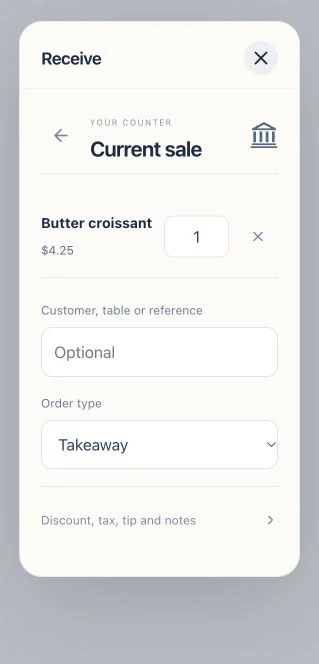
Keep items, quantities, a table or reference, tax, discounts and tips with one total.
COUNTER BY BANKEIZ
Your products, prices and stock. One clear place to run the next sale. Tap what they want, show one checkout, and know when you’ve been paid.
Open Receive → Counter. The small offerings icon opens your register.
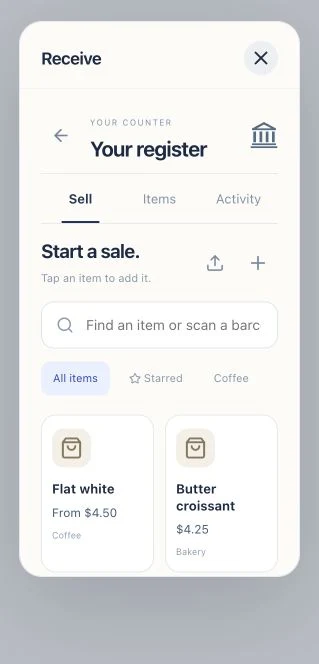

Bring your existing export, add offerings by hand, or save a custom item while you’re selling. Build the register around the way your business actually works.
Choose their options, adjust the quantity and review one exact total. Save a cart while you help someone else, then pick up where you left off.
Paid means an actual payment Original has been received and retained. Keep the sale, the amount and its evidence together.
THE ACTUAL EXPERIENCE
Review the cart. Let them scan. See the confirmed payment. These are captures of the working Bankeiz interface, using an example business with synthetic payments.
Keep items, quantities, a table or reference, tax, discounts and tips with one total.
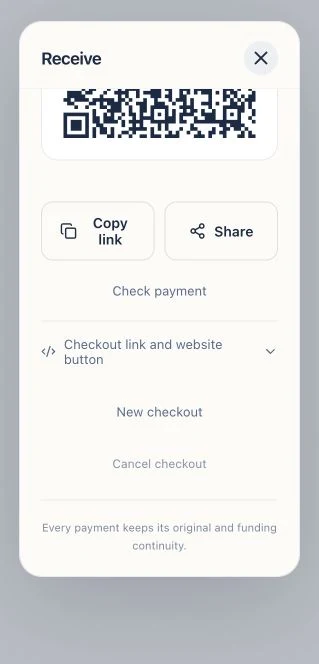
Present the QR, copy its link or share it. The customer reviews the amount before payment.
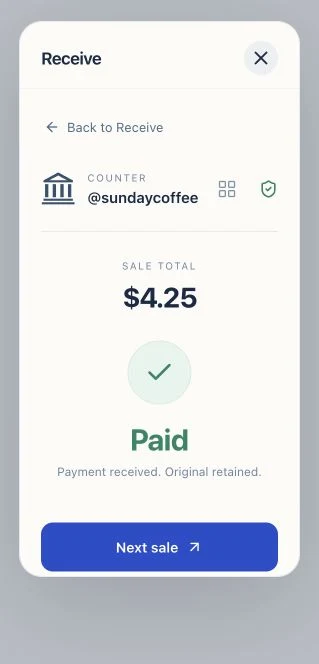
The saved checkout updates when its exact payment is confirmed. Close and reopen; the result stays with you.
SIMPLE ON TOP. COMPLETE UNDERNEATH.
Keep everyday selling light. Open deeper information when you need it.
Coffee, services, sizes, seasons. Organize what you sell with your own categories, tags and favorites. Find an item by name, SKU or barcode.
Sizes, variants, milk choices, extras and required options. Keep each price clear and let the cart do the addition. Sell by item, weight, length, time or your own unit.
Start with a name and price. Open the details you need for images, descriptions, ingredients, allergens, care, brand, suppliers and your own custom fields.
Set costs and comparison prices. See estimated gross margin. Apply product tax rules, an order discount or a tip before creating the checkout.
Track available quantities, low-stock levels, locations and reorder information. An open checkout holds its stock; an accepted payment counts it once.
The saved sale keeps its exact items, options, quantities and total. The payment keeps its Original and funding continuity. Later product edits leave earlier sales intact.
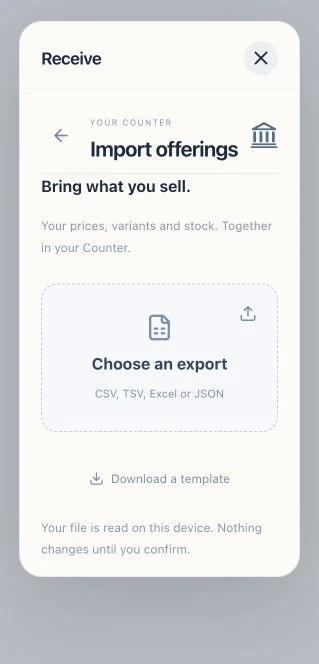
BRING WHAT YOU ALREADY HAVE
Export from your existing system and bring a CSV, TSV, XLSX workbook or JSON file. Choose a sheet, match the columns and inspect the preview before saving.
Import is read on your device. Nothing changes until you confirm.
ROOM FOR REAL LIFE
Put a name, table or reference on the order. Save it while someone decides, then return to the same items and prices.
Close its payment link and release held stock. An accepted payment is always preserved; cancellation never erases money that already arrived.
Update an offering, archive an old one or record a stock adjustment with its reason. Completed sales keep the details they had at the time.
YOUR KIND OF WORK
Required choices, optional extras, sizes, ingredients, allergens, tables and saved carts.
Images, variants, SKUs, barcodes, categories, available stock and a checkout you can share.
Sell by the hour or a custom unit. Keep duration, preparation, client references and notes with the work.
Open Bankeiz, then Receive → Counter. Tap the small offerings icon to open Sell, Items and Activity. The familiar quick-amount Counter stays there too.
No. Enter a quick total, add a custom item, or save that item for next time. Add only the details you need as you go.
They open the checkout and approve the exact amount. The existing balance/card option uses available balance first and funds the shortfall by card. They can also choose Note.
It stays saved so you can reopen it, check its payment or cancel it when unpaid. Stock stays held until the checkout is paid or atomically cancelled. A delay alone does not mark it paid or release its stock.
Yes. Inspect saved sale details and the admitted payment evidence. Export offerings and retained payment activity. The original payment record keeps its source and funding history.
Counter uses your existing Bankeiz account. The optional Business upgrade adds help with the work around your money; it is separate from this register. Review the existing payment terms when accepting payments.
YOUR NEXT SALE
One account. Your offerings. The next payment, with its story intact.
Open BankeizReceive → Counter → offerings icon
Explore getting paid